
Categories
Bitbucket Revision Control System Software Technology

How to Use Bitbucket and Sourcetree – Branches

In the previous post, we showed how to synchronize the local repository with the remote repository located at Bitbucket cloud. For that we used a single branch called “master” locally and a branch called “origin/master” remotely. This branch can be shared with other users so that they can also clone the repository and do their work in their machines. Once they are done with their updated files, they can stage, commit and push it to remote branch. However, in a business I.T. development environment with multiple users are working together, it would be better to keep multiple branches. This would keep the work flow streamlined into the different stages a project goes through.

Usually a project starts at the development (DEV) phase, then goes to quality analysis (QA or testing) phase. Once testing is completed, it can move to pre-production (PREPROD) phase and then finally to the production (PROD) phase which is the final destination of the project where it accomplishes its intended purpose. There could be few more additional stages in this type of work flow, but the DEV, QA and PROD are the most commonly used ones.

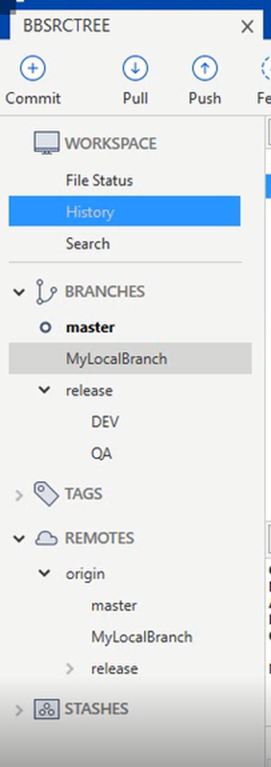
We should also note that when operations team notice any issues with the applications running at production, they might refer back to the developers, which will again trigger another set of development, quality analysis and production phases. The following screenshot shows some of these branches used in a typical environment. In order to keep up with these commonly used phases we can have branches release/DEV, release/QA, master (PROD). Also to keep a personal local branch, we can also have a purpose/task driven name such as “MyLocalBranch” or a branch with a reference number, etc. The following screenshot shows how the branches have been created with our sample scenario.
Creating Local Branches

Let us create a branch locally at sourcetree and then sync to remote (Bitbucket cloud). It is also possible to create branches at bitbucket cloud and then sync them as the local sourcetree branches.

1] At sourcetree window, click on the “Branch” icon in the top. This will open a new popup window “Branch”. Enter the name of the new branch (e.g. MyLocalbranch), make sure to check the option for “Checkout New Branch” is selected and then click on “Create branch” button.
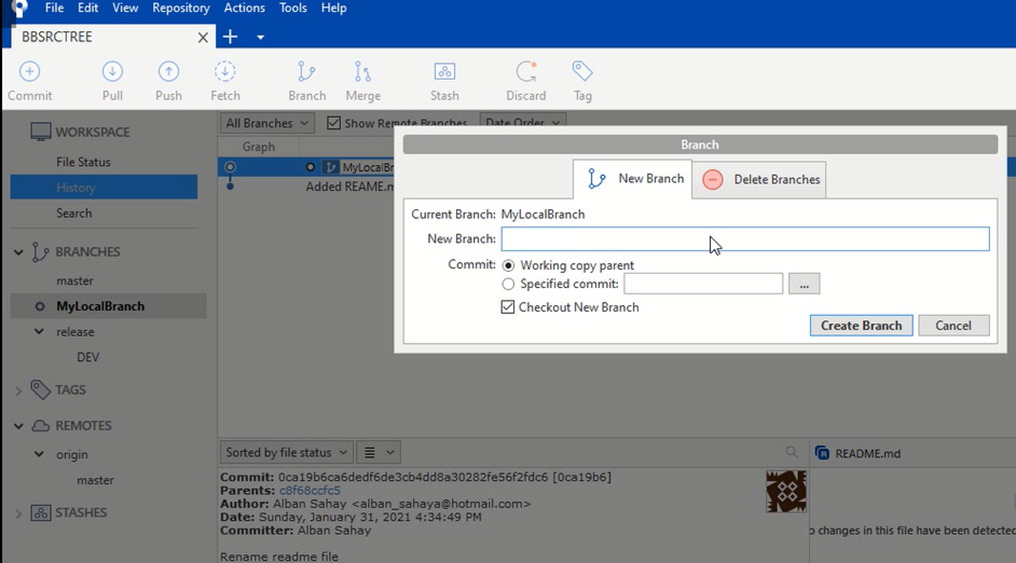
This will create and checkout the new branch. Your folder where the repository is mapped now corresponds to this new branch.

2] Click on “Fetch” button to retrieve the currently existing files from the remote branches.
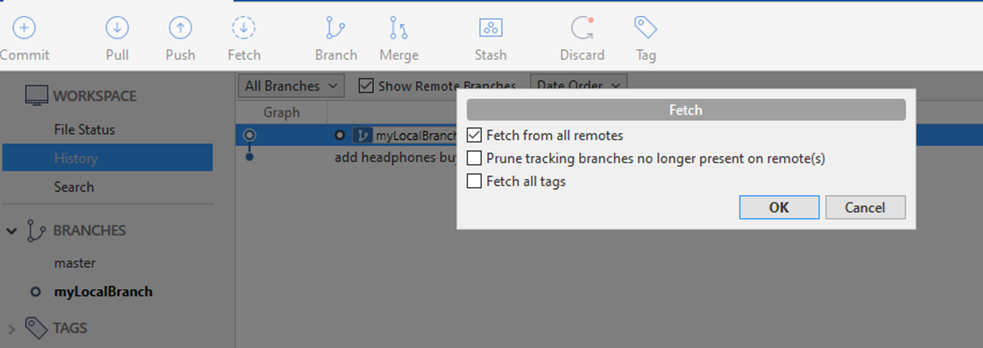
3] The branches that exist at remote will now appear at sourcetree under REMOTES.

4] Start working with the copies of files at local branch by updating existing files or adding new files as required for the tasks in hand.

Share
Categories
DevOps Software Technology

How to use Bitbucket and Sourcetree

Bitbucket is a version control system. A version control system (VCS) is where programmers can store their code at various stages of development, so that they can restore previous versions easily when there is a requirement. Bitbucket is based on Git, which is one of the most popular VCS. Git was created by Linus Torvalds, who also created the Linux operating system.

Bitbucket can be used either as a cloud-based VCS repository or installed as an in-house application within an organization where the development teams can store their source codes. The main advantage is that it helps much with collaboration among the developers.

In this introductory tutorial, let us see how to create a repository on the Bitbucket cloud and use it for storing source files.

Registration at Bitbucket Cloud and Installation of Sourcetree

To start with, you need to create an account at bitbucket.org.

1] Login to bitbucket.org and click on “Get it free” to sign up for new id or login with a gmail / Microsoft / Apple ids if you do not have a previously registered login.

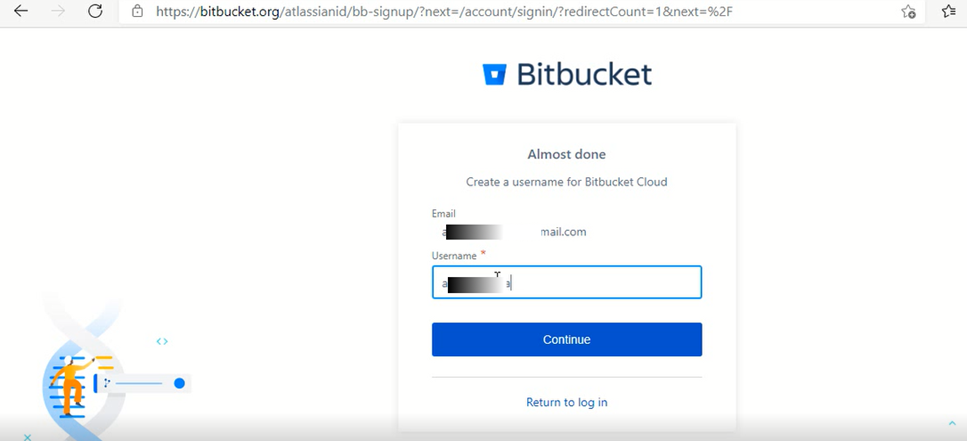
2] Specify a username for bitbucket cloud and click continue.

3] Once you login to bitbucket cloud, the welcome screen shows the option to create new repository or import existing repository. Also, there is a button to create workspace for team collaboration.

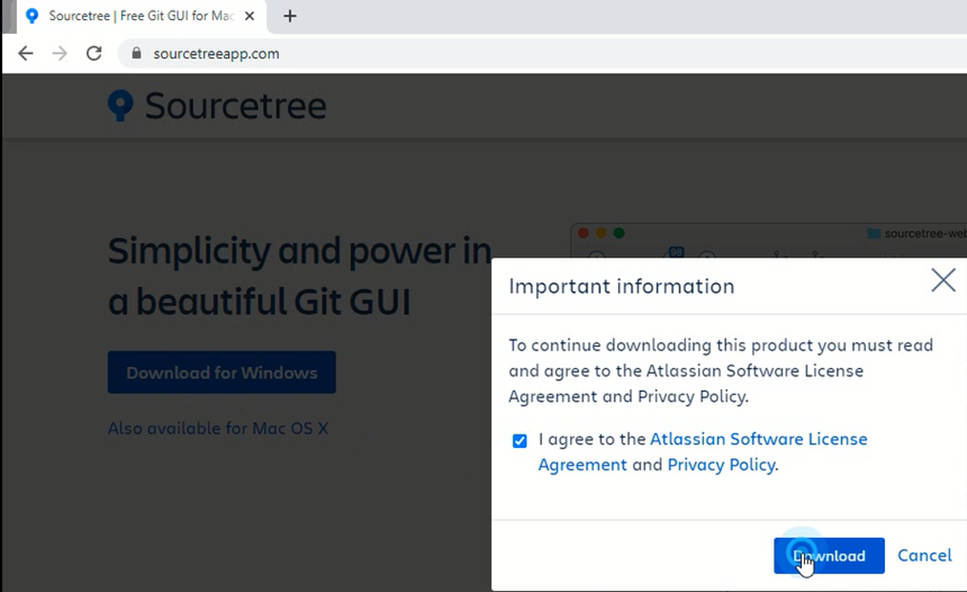
4] Sourcetree is a GUI client for Bitbucket. This is an equivalent of the Git command line client. Sourcetree can be downloaded from https://www.sourcetreeapp.com/. Click on the Download button and accept the agreement check mark followed by clicking on Download button again.

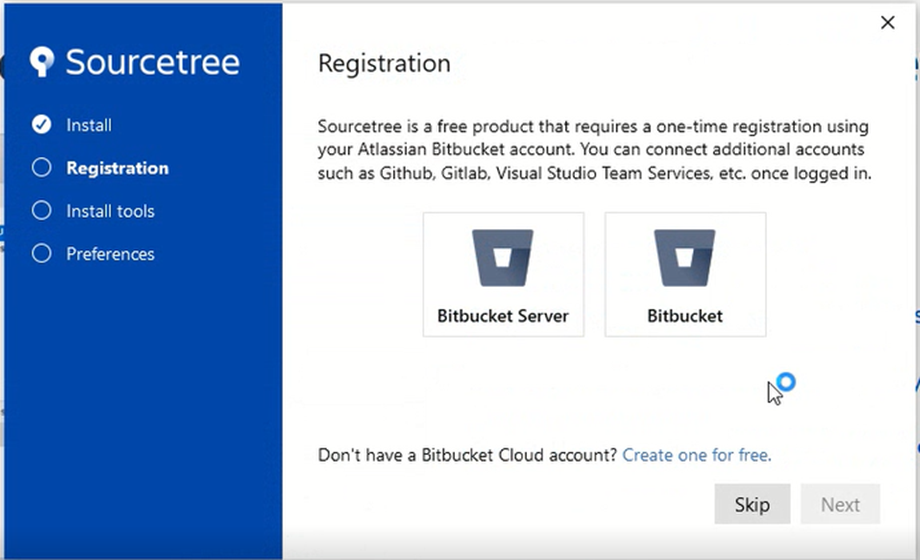
5] Double click on downloaded binary to launch the installation of Sourcetree. During the installation process, in the popup window, click on “Bitbucket” icon and click Next. The same registration id used previously with bitbucket has to be used in order to connect sourcetree client with bitbucket cloud.

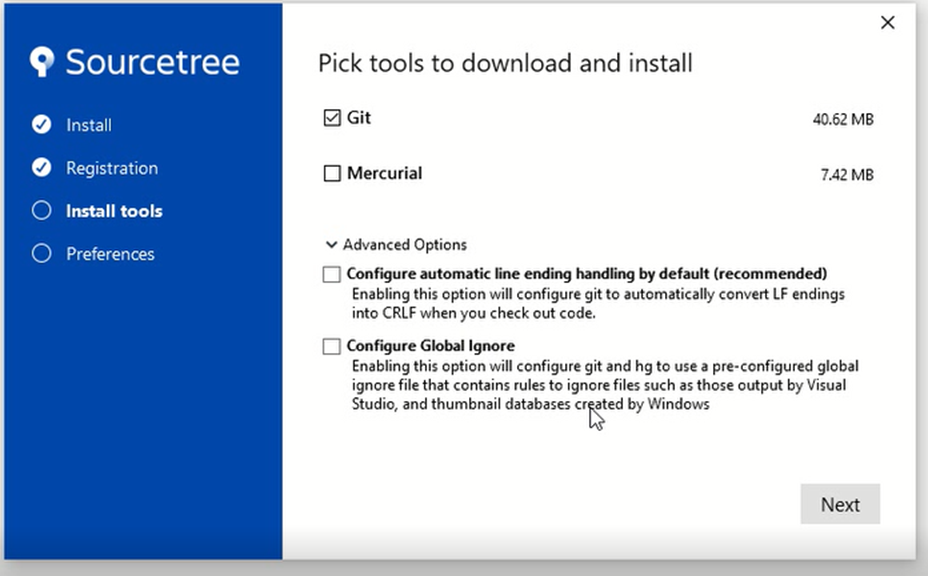
6] Once login to bitbucket is successful, a “Registration complete!” message appears. Click “Next” to continue with the installation of client tools. Select “Git” and unselect “Mercurial” and click “Next”.

7] Once the Git client installation is done, “Tool installation completed.” message appears. Click Next and in the following Preferences window, enter the bitbucket username and the email id used for bitbucket cloud registration. This will finish the installation process and open sourcetree application window.

Create a repository

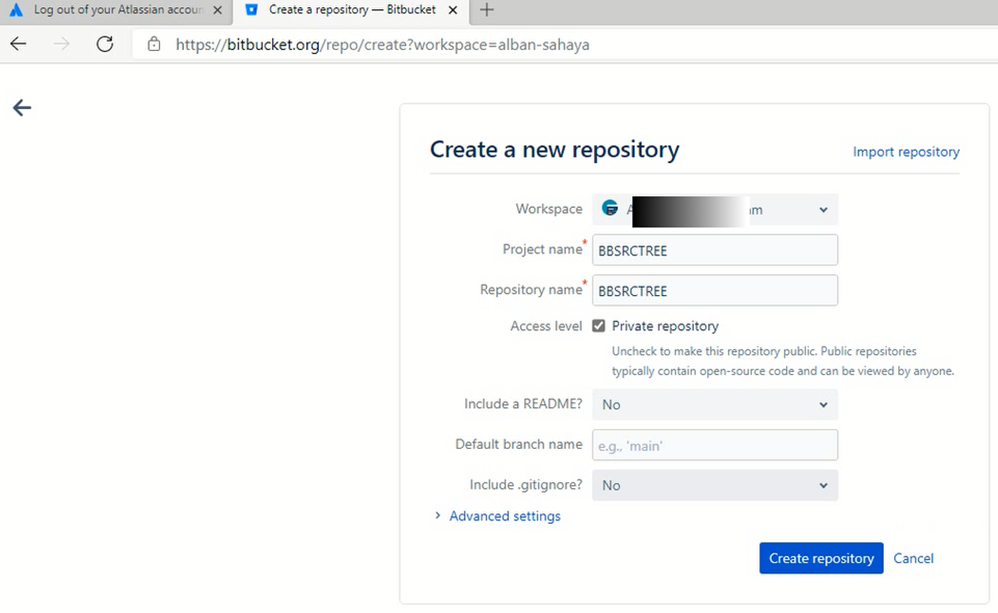
1] At Bitbucket click on “Create repository” button

In the “Create a repository – Bitbucket” window, enter the project name, repository name, check the access level as “Private repository” and other settings as indicated below and then click “create repository”

2] The new bitbucket repository is created. In the next window, it displays a command “git clone https://….git“. This command can be used to clone this repository if the Git command line client is used. We can use the URL (the value after git clone i.e., https://……git) will have to be used to specify the remote repostory’s URL at sourcetree.

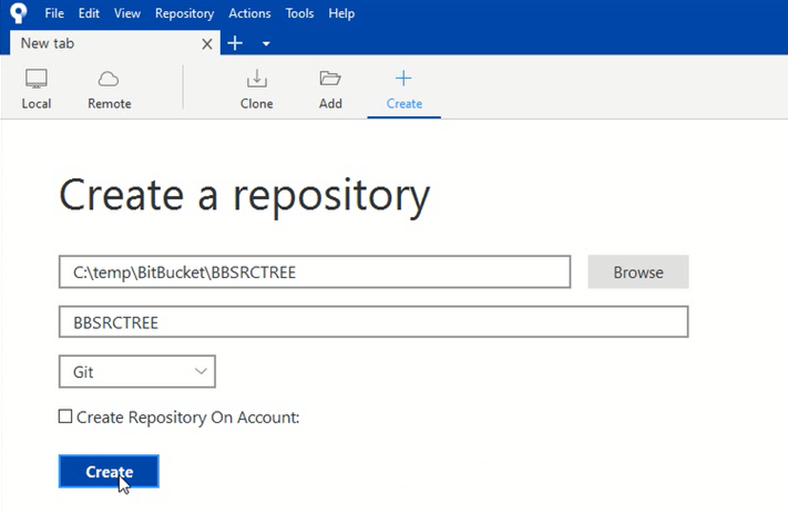
3] At Sourcetree, click on “+” icon (Create) in order to create a local repository. The folder where repository files are stored can be specified either by entering it at the specified text box or by exploring the filesystem by clicking at the “BROWSE” button. Also specify the name of the repository and the type of version control system (Git) and then click “Create” button.

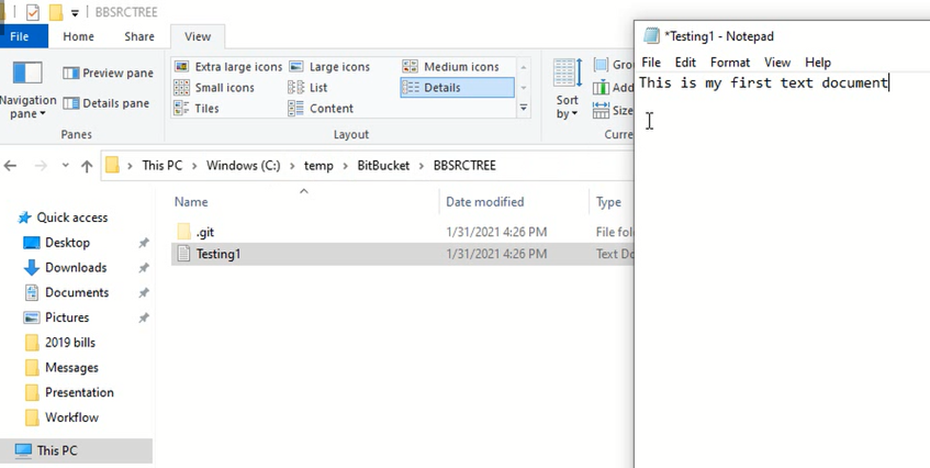
4] Click “yes” if a prompt appears asking for confirmation to create the repository at the specified folder. Once the repository is created, a hidden folder called “.git” will appear at the repository folder. The .git folder contains configuration settings associated with the Git client. Don’t touch this hidden directory for now.

Adding and Updating Files to Repository

5] Create a new text file called Testing1.txt at the local folder designated for the repository and add some content to it. Then save it.

6] As soon as the new file is added, the sourcetree shows it as “Uncommitted changes” and the filename appears under “Unstaged files”. select the filename and click on “Stage selected”. The filename now appears under “Staged files”.

7] Click the “commit” icon in the top. Specify few comments such as “First commit” in the text box at the bottom of the window and click on the “Commit” button below. This might prompt to confirm the full name and email id. Click ok after verifying the values.

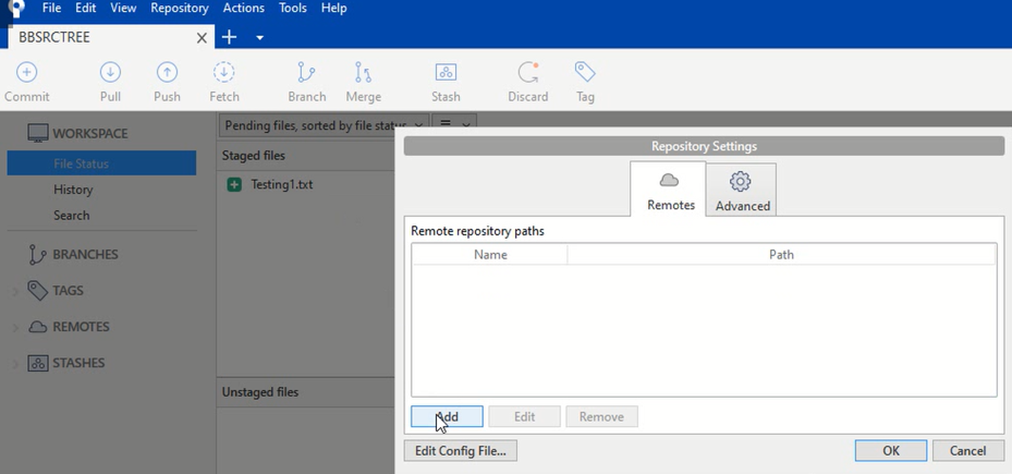
8] From the top menu, select “Repository -> Repository Settings”. This will open the “repository settings” popup window.

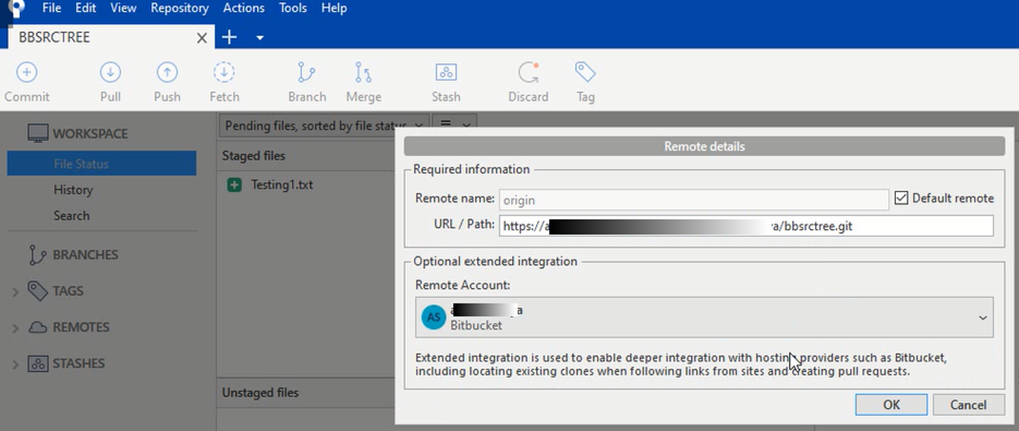
9] Click “Add” button and then specify the URL (as specified in step 2 above) and remote name as well as the bitbucket account name and click OK. Again, click OK at the next prompt.

10] At the local folder associated with the repository, add another file called “README.md”, add few introductory contents to it and then save it. At the sourcetree, stage the new file and click on “Commit” icon. Add a comment about reason for this commit and then click on “Commit” button.

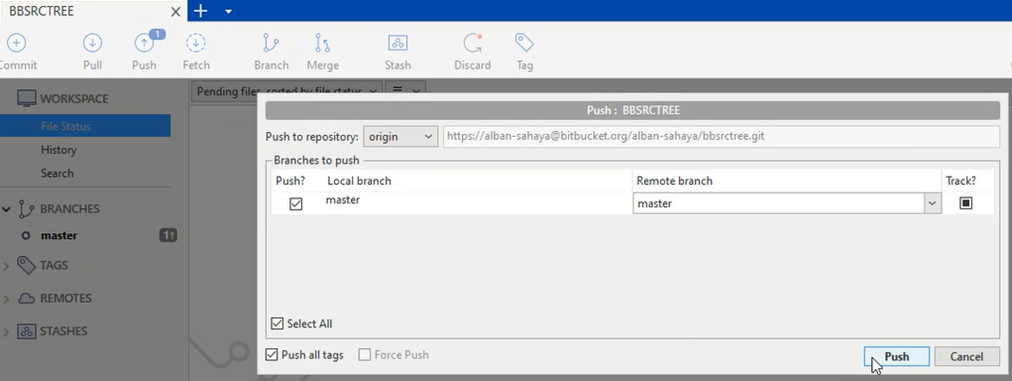
11] At sourcetree, click on “Push” button. This will open a new popup window. Check the box which indicates local branch as “master” and specify remote as “master” and then click “Push”. At the CredentialHelperSelector window, select “manager-core” and check the box “Always use this from now on”. The files get pushed to remote now.

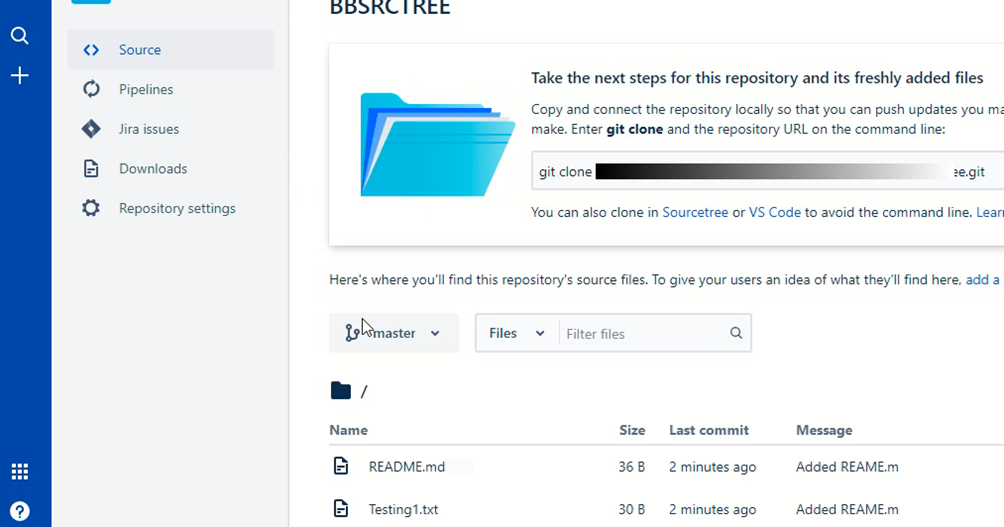
12] Refresh Bitbucket and open source and verify if the files are listed under master branch.

Share
Categories
Accounting Software Technology

Using GnuCash for Small Business Bookkeeping and Accounting – Installation

(I used to have a small business and previously was relying on third party accountants for bookkeeping and accounting. Though I was okay to send most of the financial documents and receipts to the bookkeeper, I was looking for a software that can be used for personal bookkeeping and accounting as well as preparing the year end reports that can be used for tax filing purpose. There are a number of commercial software such as Quickbooks and Sage Pro that can be used for this purpose and I intended to purchase one. However, after I purchased and started using one such software, I noticed that it required additional modules / subscription for other necessary functions such as employee payroll processing. But in the meanwhile, I came to know that GnuCash is a free accounting software that can be used for a small business such as mine. It seems to be easy to use and can be adapted for most of the additional functions such as payroll processing with little effort on our side.)

GnuCash is an opensource, free accounting software. It is used for tracking personal finances as well as small business accounting and invoicing. Even though it doesn’t have an integrated payroll system, payroll expenses can still be manually tracked in GnuCash, if taxes and deductions are calculated outside the software, probably using spreadsheets. It implements a double-entry bookkeeping system.

GnuCash software is available for Windows, Linux and MacOS and can it import a variety of popular open and proprietary file formats, including QIF, QFX, OFX, CSV, etc. Hence, converting from other personal finance applications, like Quicken, would be easy.

Installation

GnuCash is supported on Windows, MacOS and Linux. It is part of many Linux distributions and can be installed using the Linux installation option similar to other software such as LibreOffice. For Windows and MacOS, the binaries can be downloaded from https://www.gnucash.org/download.

Installation on Windows 10

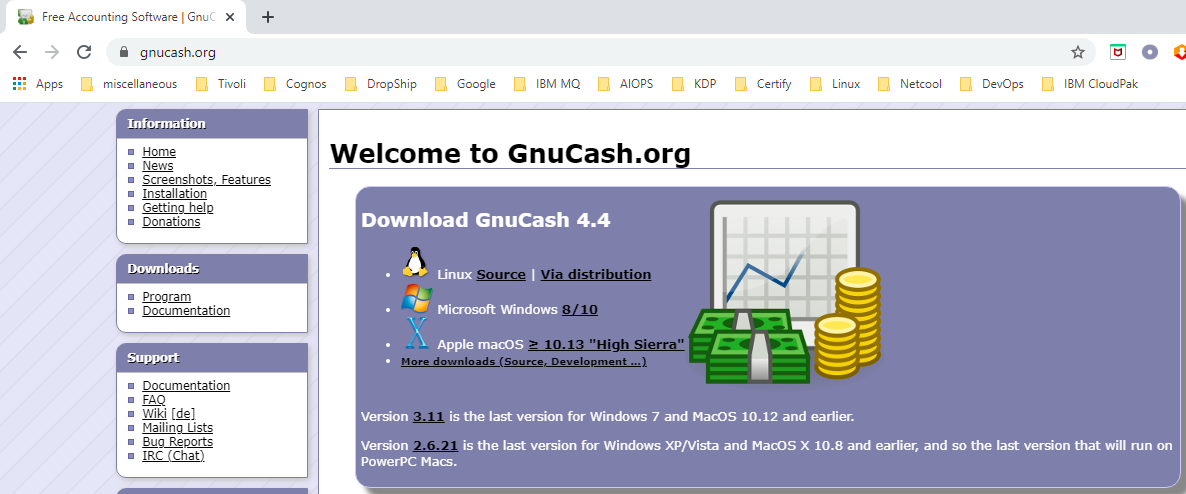
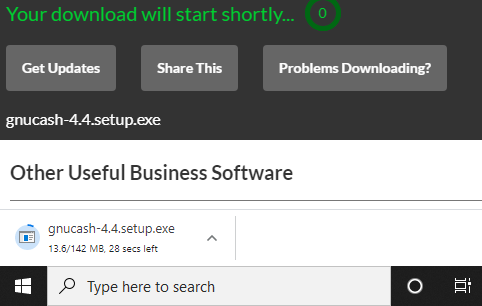
1) Download the software binary from GnuCash    site by clicking at “Microsoft Windows 8/10”

2) Double click on the downloaded binary to launch the installation.

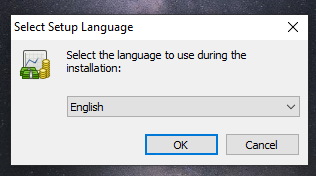
3) Select the language of installation (English) and click OK.

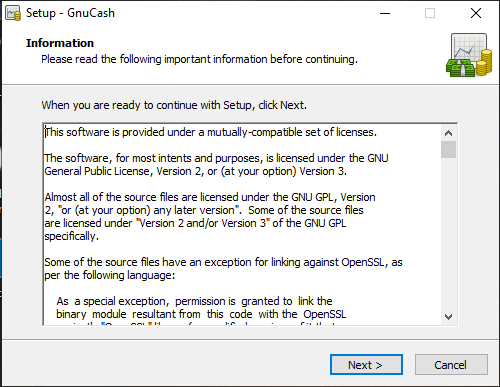
4) Click Next

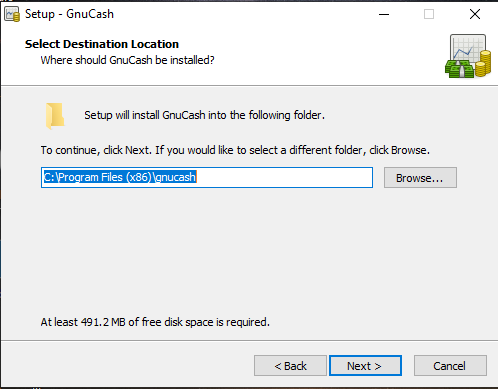
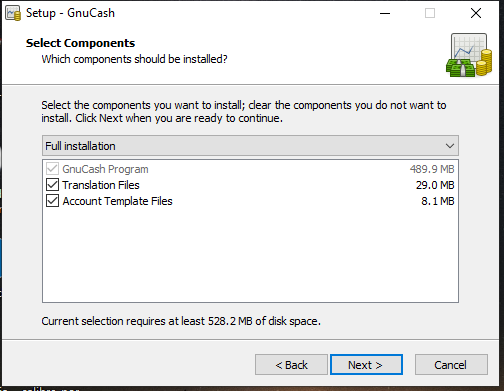
5) Change destination folder, if different from default, and click Next.

6) Click Next

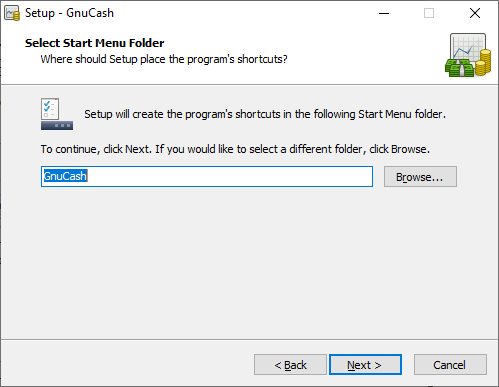
7) Click Next

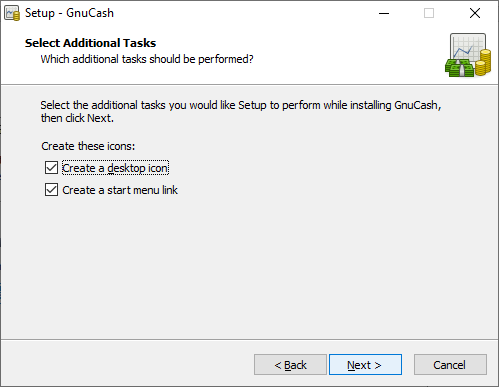
8) Click Next

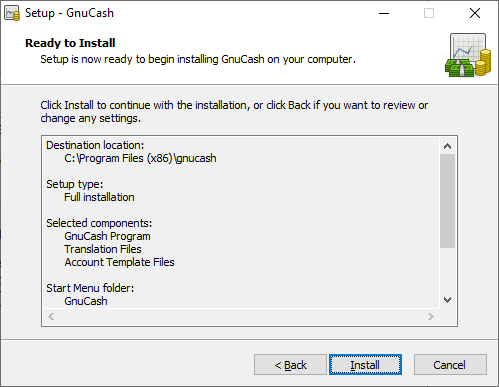
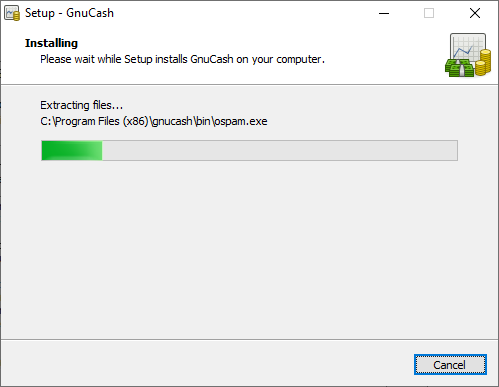
9) Click Install

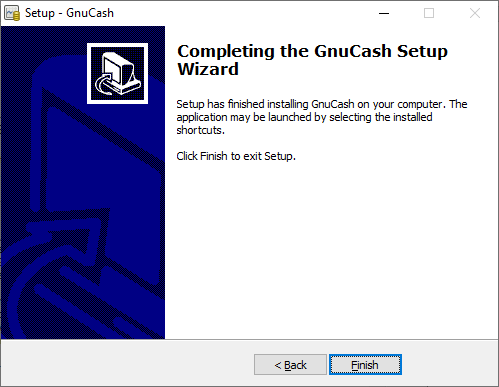
10) Click Finish

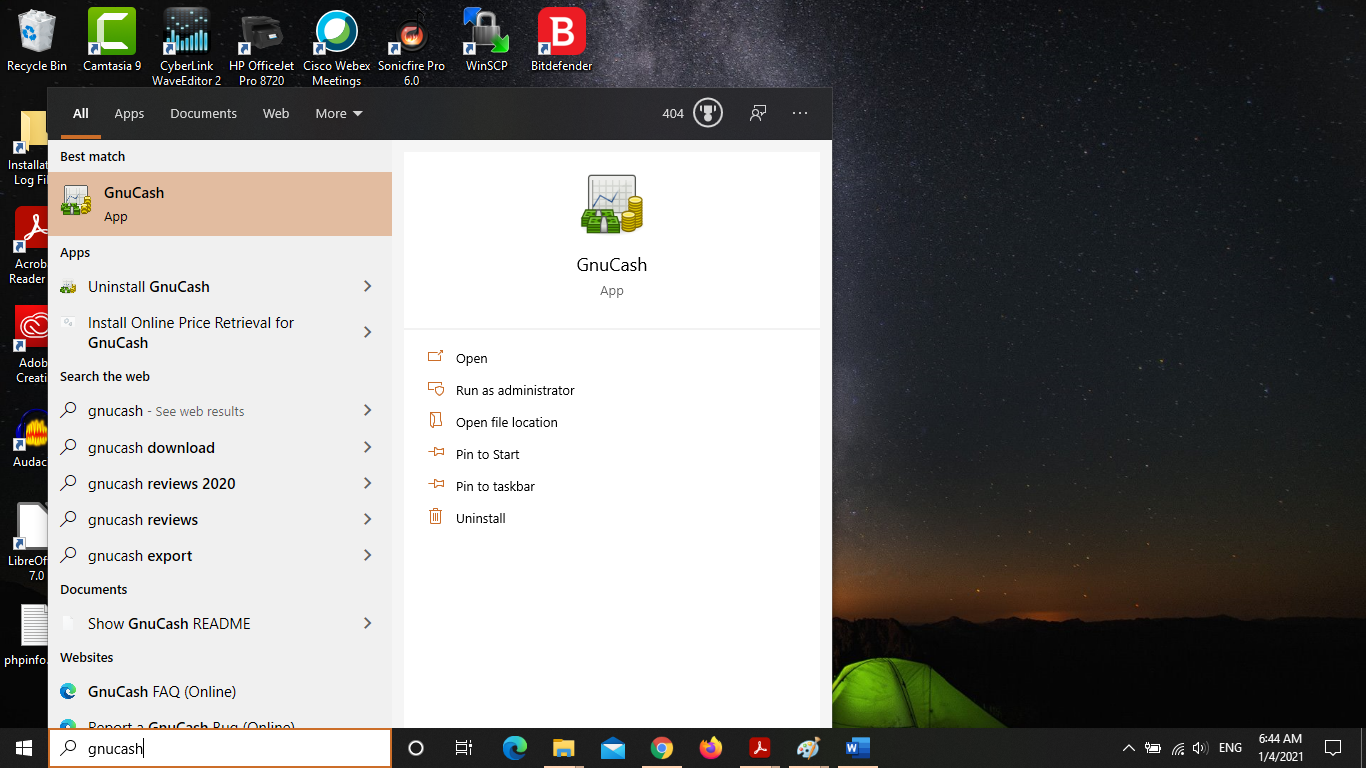
11) Launch GnuCash application by either typing gnucash at start menu or double-clicking at the GnuCash icon at the desktop

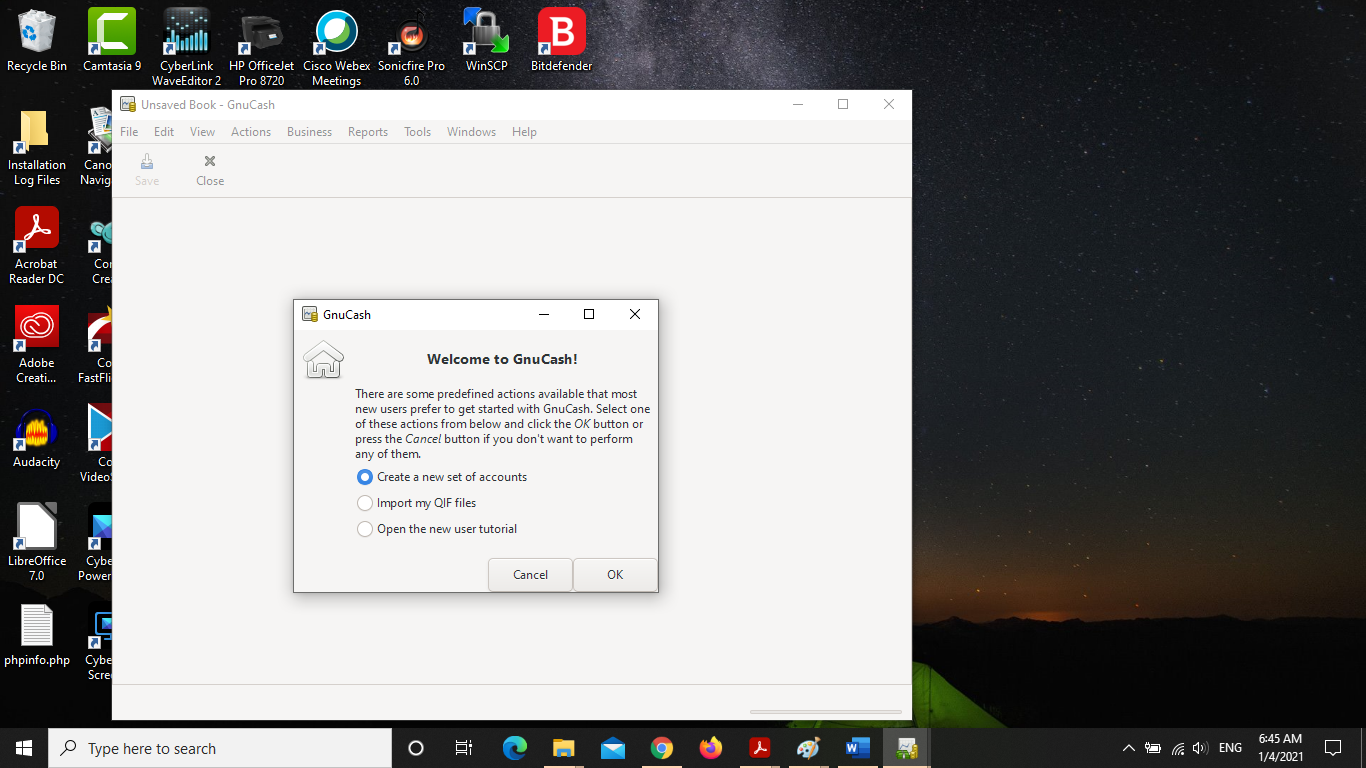
12) The GnuCash Application Opens. Click on “Open the new use tutorial” and OK to know more about GnuCash

Installation on Linux

Most of the Linux distributions have GnuCash prepackaged with their distribution and so it is just a matter of selecting the software during the OS installation or through the software package manager.

For example:

•    To install GnuCash on Red Hat, CentOS, or Fedora:

$ sudo dnf install gnucash

•    To install GnuCash on Debian, Ubuntu, or MintLinux:

$ sudo apt install gnucash

You can also install the latest version 4.4 from Flathub.

On Ubuntu 20.04, this can be done using the following commands :

# Install FlatPak (on Debian based distributions, others have to replace ‘apt-get install’):

sudo apt-get install flatpak

# Register FlatHub repository:

sudo flatpak remote-add –if-not-exists flathub https://flathub.org/repo/flathub.flatpakrepo

# Install GnuCash …

## for all users:

sudo flatpak install flathub org.gnucash.GnuCash

## or only you:

flatpak install flathub org.gnucash.GnuCash

# Run GnuCash:

flatpak run org.gnucash.GnuCash


Share